Update the Default and Assignment Email Templates
![[Deleted User]](https://wa.vanillicon.com/v2/a956ae5b01d02b69dd349bcd60564717.svg)
I noticed that the assignment emails use the default template. I would like to update the default email template for a project and the assignment email template.
Comments
-
Hi there!
You can absolutely accomplish this in Decisions.
The default Decisions email template will be used until you update the default or create a new email template and assign it to your project. Likewise, the assignment email template can be updated as well.
To update the default email template, you will need to add your new email template.
Navigate to:
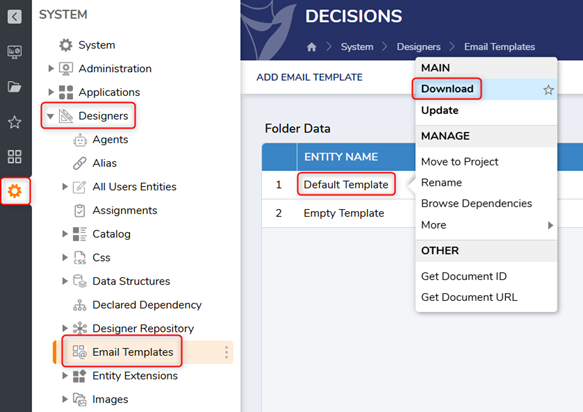
System >> Designers >> Email Templates. Right-click the Default Template and select Download.
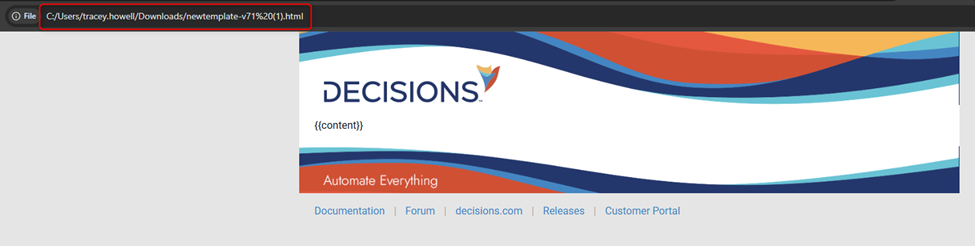
Open the HTML file. Navigate to the location displayed in the address bar.
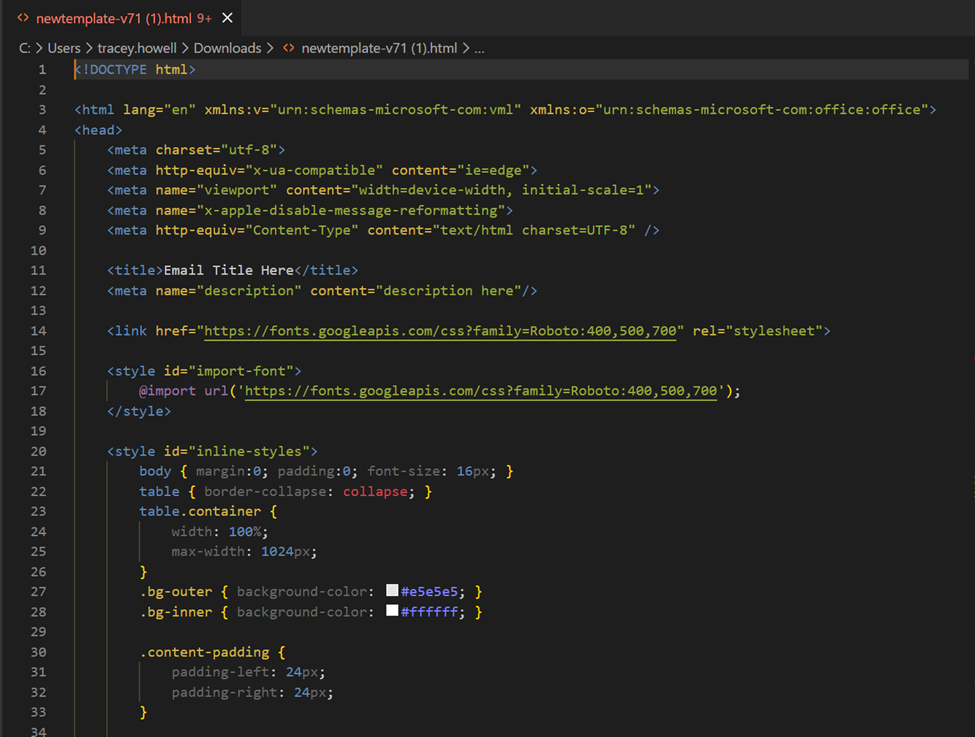
Open, edit, and Save the Default Template as desired. Note: The new email template must have a section with {{content}} in the body.
If you want to add the email template to a specific project:
After editing (or creating) an Email Template, navigate to:
Projects >> Desired Project >> Manage >> Configuration >> Templates >> Email Templates. Click ADD EMAIL TEMPLATE.
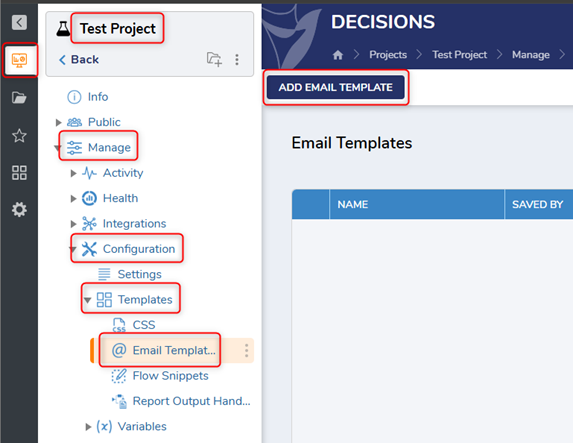
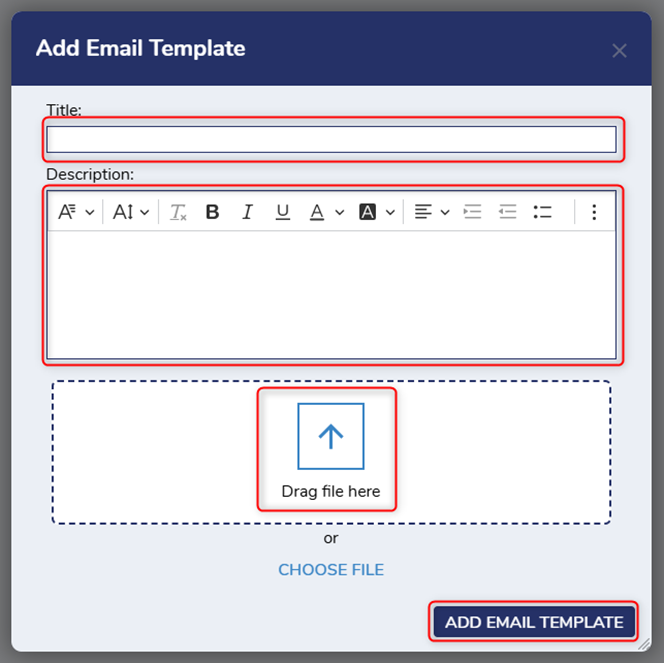
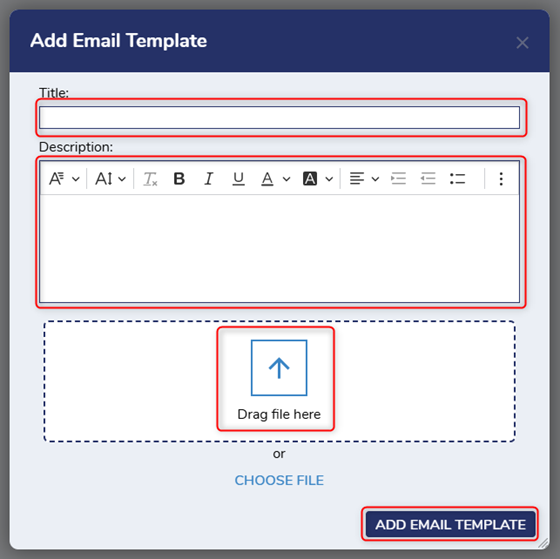
In the ‘Add Email Template’ window, enter a Title and Description, and then drop or choose the Email Template HTML document. Click ADD EMAIL TEMPLATE.
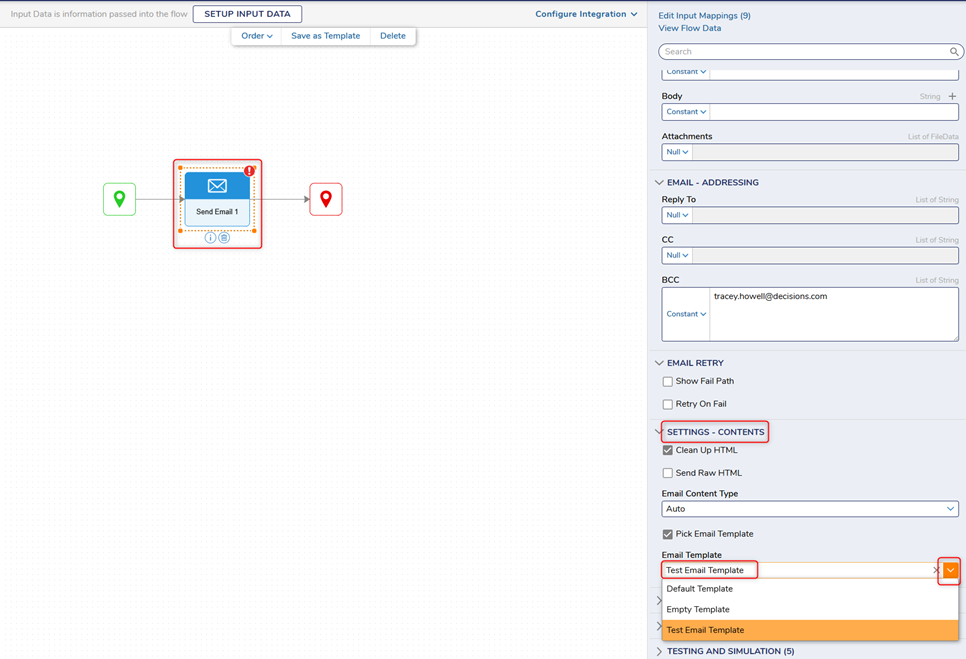
In the Flow Designer, select the Send Email step. In the step properties under Settings – Contents, from the Email Template drop-down menu, select the added Email Template. Click Save and close the Flow Designer. Note: Be sure to input From, To, Subject, and Body.
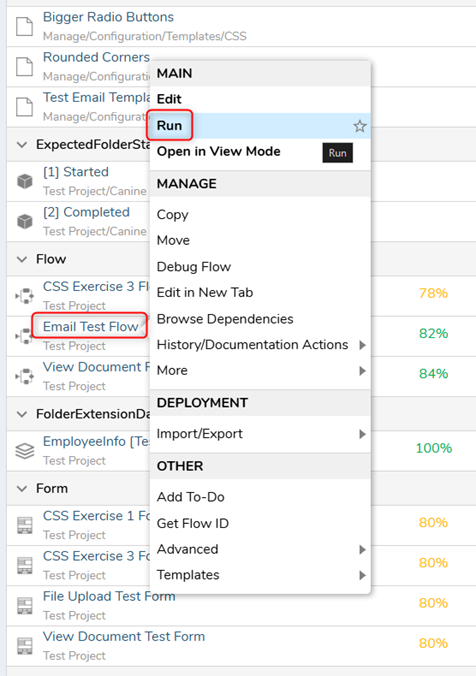
From the Designer Project, right-click the Flow and select run.
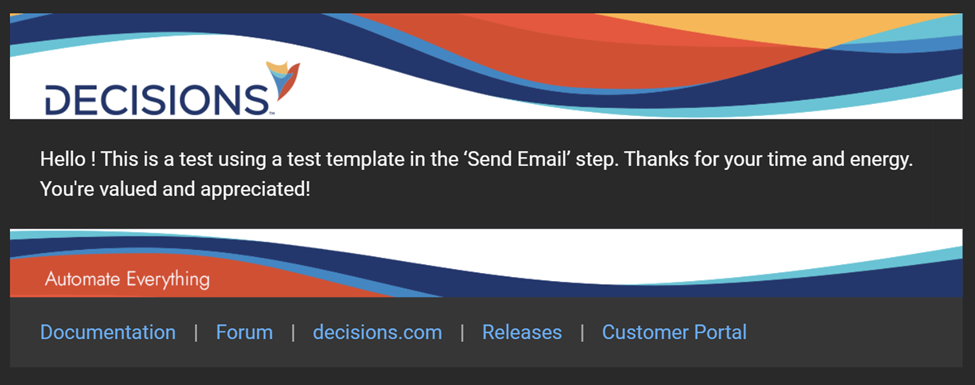
Verify that the email has been customized as desired.
If you want to add the email template to assignments notification emails:
After editing (or creating) an Email Template, navigate to:
System >> Designers >> Manage >> Email Templates. Click ADD EMAIL TEMPLATE.
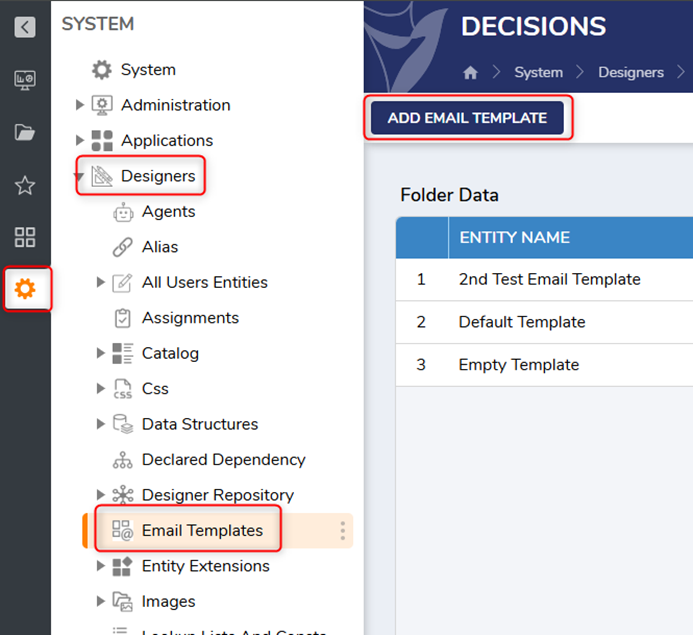
In the ‘Add Email Template’ window, enter a Title and Description, and then drop or choose the Email Template HTML document. Click ADD EMAIL TEMPLATE.
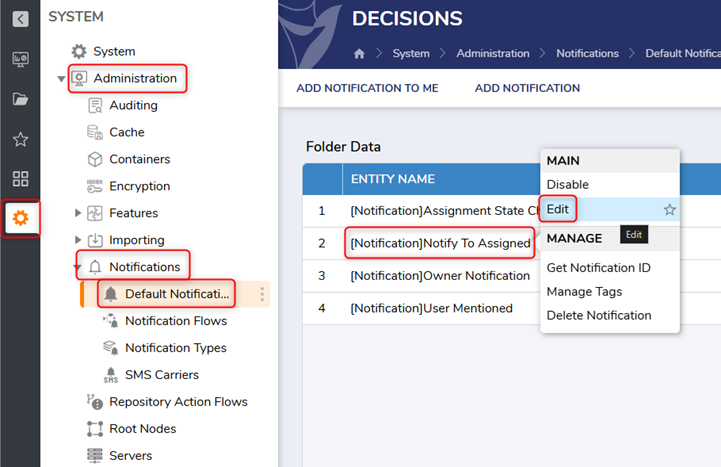
Navigate to:
System >> Administration >> Notification >> Default Notification, and right-click [Notification]Notify To Assigned. Select Edit.
In the ‘Edit Notification’ window, for Email Template, select your custom HTML email template and click SAVE.
All the best,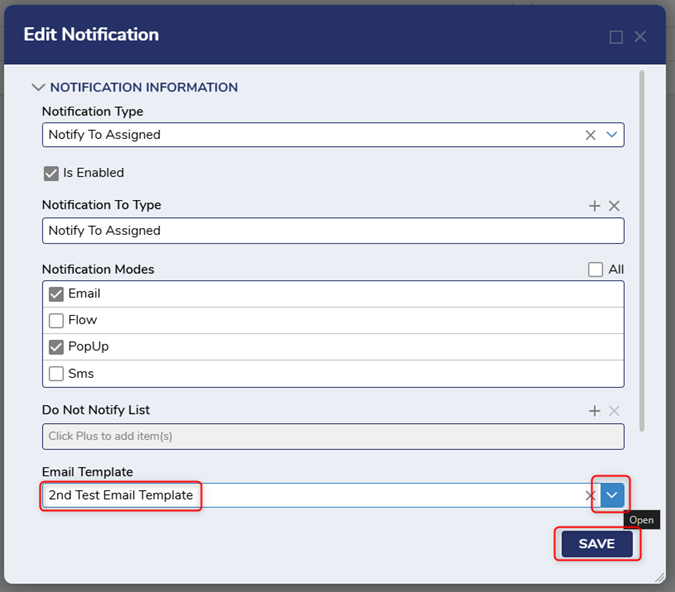
Tracey | Decisions Support0
![[Deleted User]](https://w0.vanillicon.com/v2/0c580e728ff6a0ec9dea1bae73a60f64.svg)
Howdy, Stranger!