Set Checkbox Fields in Word Document not working??

Comments
-
Hey Harvey,
Thank you for reaching out in our forums! Based on the additional context you provided, it could be that these cosmetic placeholders are not actual editable checkboxes in your Word document and therefore are not recognized in Decisions. Listed below are some steps that you can take to ensure that these checkboxes are recognized in Decisions:
1. In MS Word2. Go to File > Options > Customize Ribbon > Main Tabs > Enable Developer
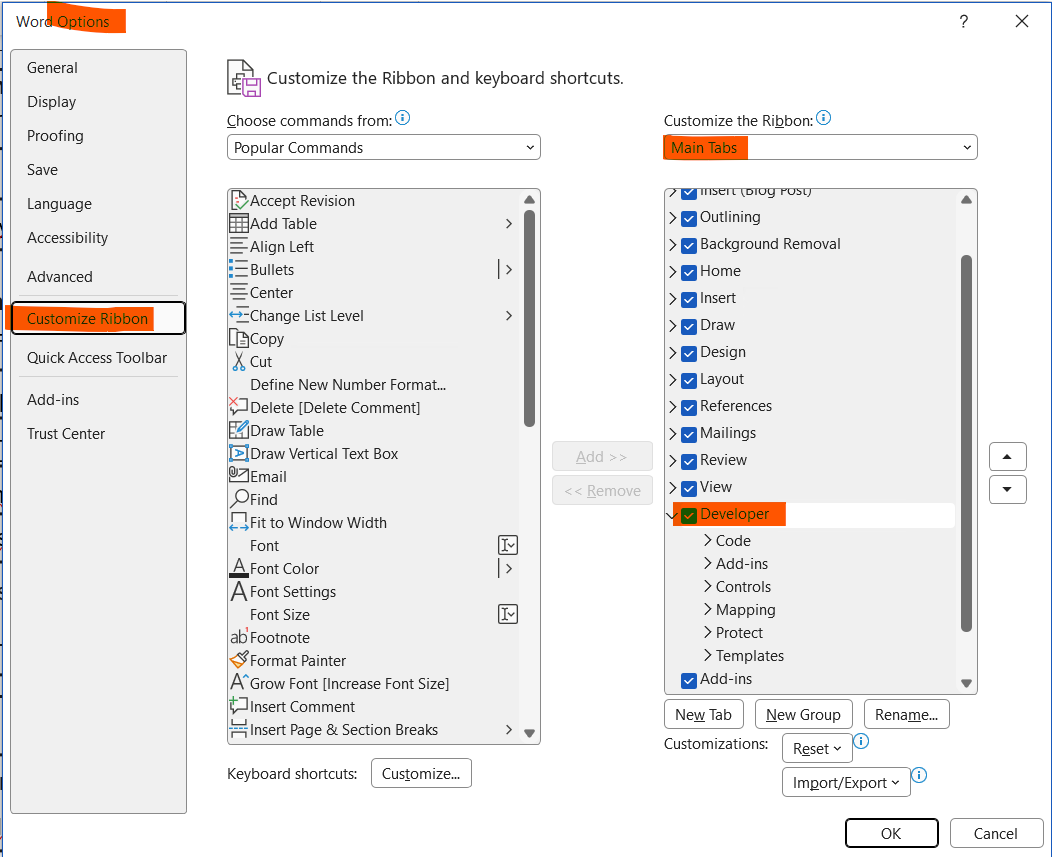
3. In the Ribbon > Developer > add a checkbox in the Controls category
4. Once the Checkbox is added
a. Give the checkbox a meaningful description (e.g. □ Join Decisions!)
b. You can now click on the border around the checkbox, there should be a button showing, press on it to select the checkbox

5. Now back in the Ribbon > Developer, there should be a 'Properties' button in the middle pane

6. Once you click on it, you can now give the checkbox a title, these titles will now be recognizable in Decisions
7. Now in Decisions, right after you Replace Text in Word Doc step, you can now use the Set CheckBox Fields in Word Doc step
8. In the Set CheckBox Fields in Word Doc step properties, you can upload the template with all of the checkboxes configured under Configuration
a. This will automatically populate the checkbox fields under Inputs for you to configure
b. You can also specify which checkboxes you want manually by inputting a list of checkbox titles that you gave in the Word Doc
Best regards,
Vinh Tran | Decisions Support
0

Howdy, Stranger!