How to Create Dependent Dropdowns on a Form

How do you create a set of drop-down menus where the second drop-down menu is dependent on the first?
Comments
-
Hi there!
This is possible on Decisions Forms by using Active Form Flows. Let’s walk through it together.
PART 1
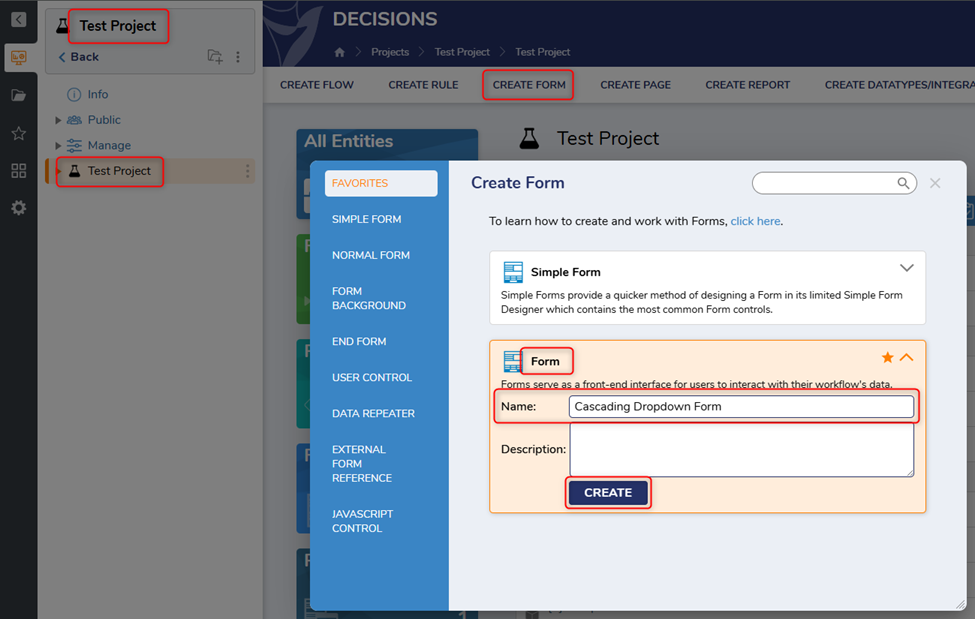
First, navigate to the appropriate Project >> Select the Designer Folder >> Click CREATE FORM >> Choose Form >> Give it a descriptive name >> Click CREATE.
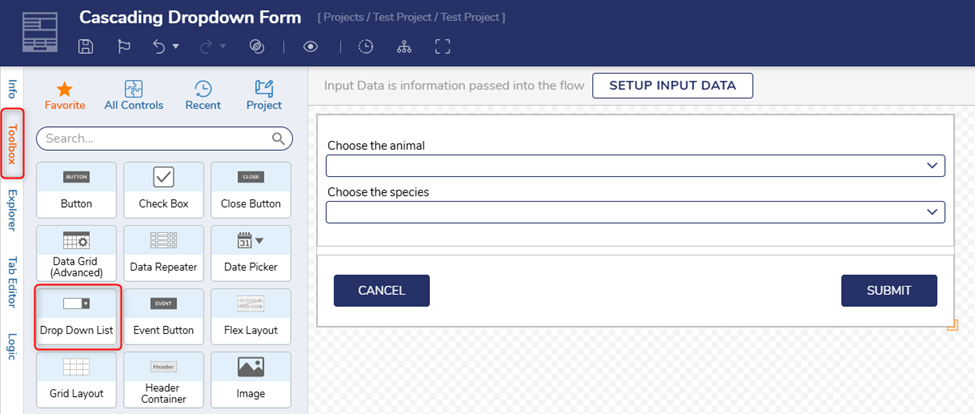
Build your form using the form components available in the left-hand side Toolbox. For example, I added two Drop Down List components.
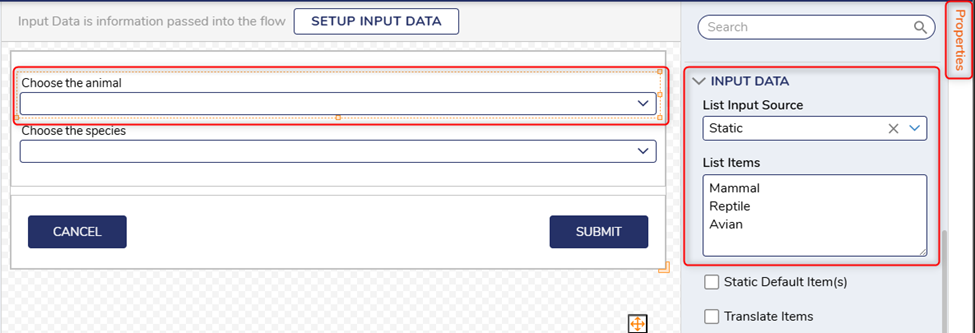
When configuring the properties for the first Drop Down List component, under INPUT DATA >> List Input Source, select Static, and add your List Items, one item per line.
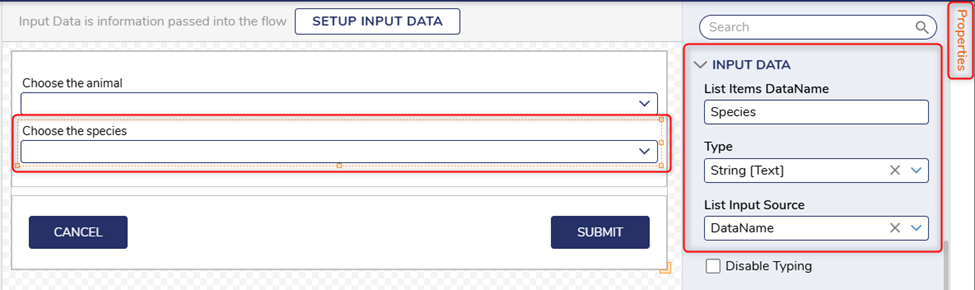
When configuring the properties for the second Drop Down List component, under INPUT DATA >> List Input Source, select DataName. For Type, choose your data type and enter a List Items DataName.
Now, let’s create an Active Form Flow.
Select the Logic tab in the left-hand menu and click the ‘+.’ Give it a Name and select the appropriate Triggers. Click EDIT [FORM NAME]_RULE FLOW button.
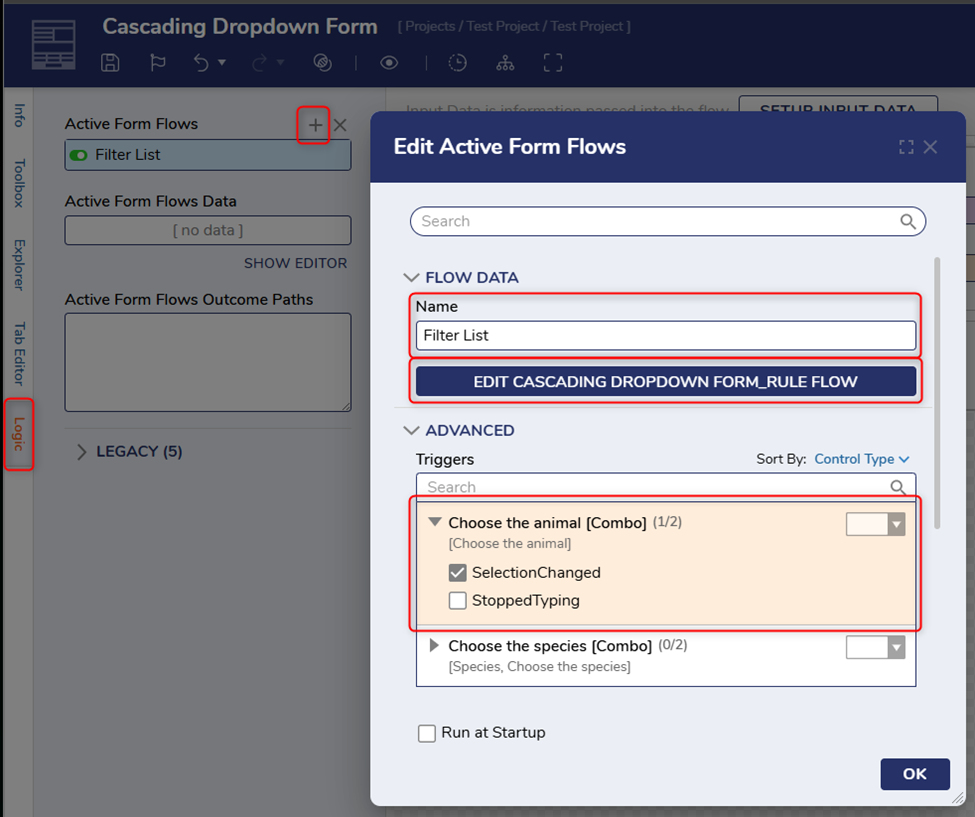
From the Toolbox in the left-hand side panel, drag out and drop Run Truth Table. In the properties on the right-hand side, click PICK OR CREATE TRUTH TABLE button.
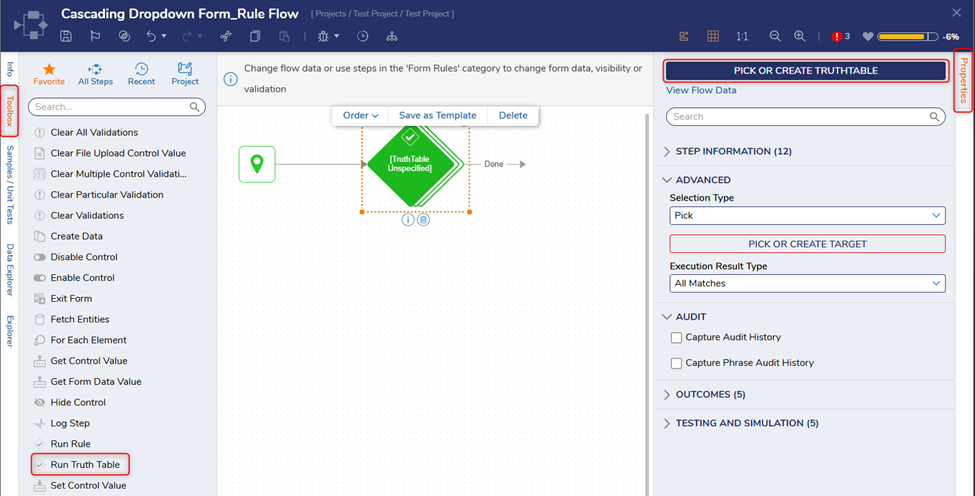
First, add your INPUT for the table which will reference the first drop-down menu form component items.
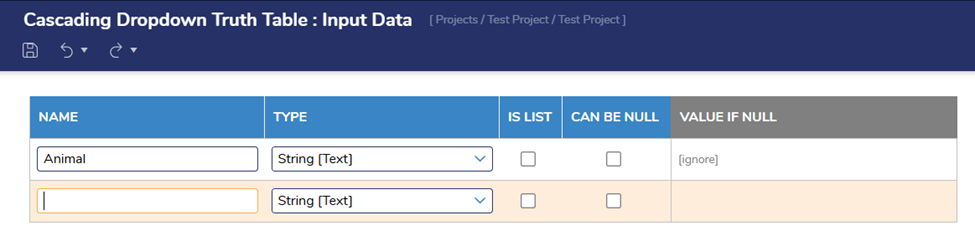
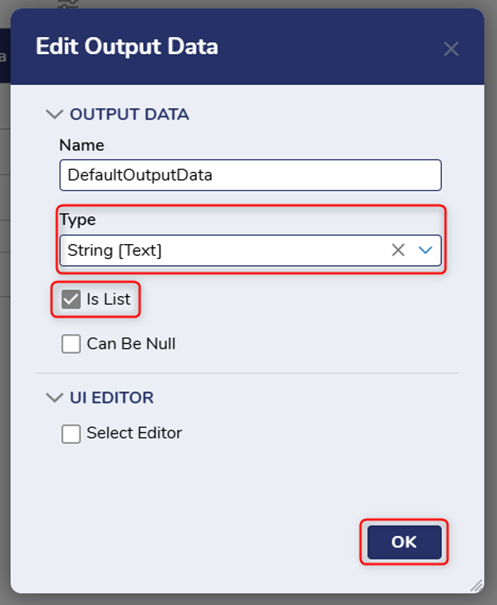
Then, enter the logic. In this example, it is ‘Animal Equals.’ Edit the Default Output Data by scrolling over it and clicking the pencil icon. Select the data type, check ‘Is List,’ and OK.
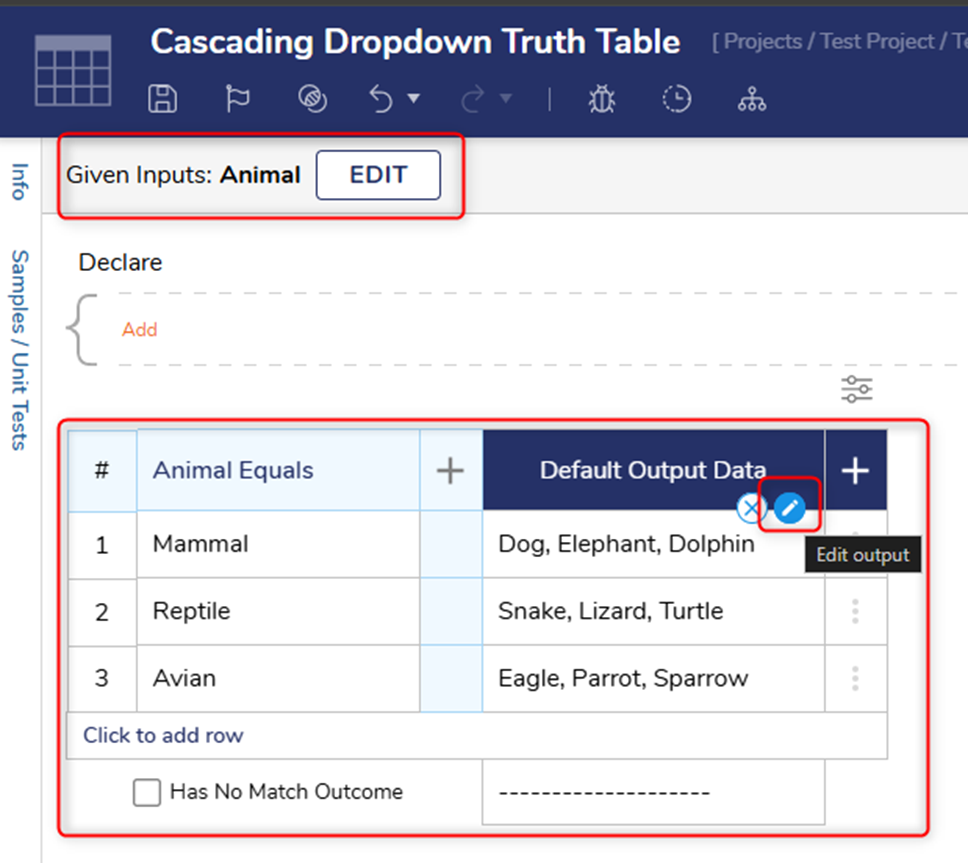
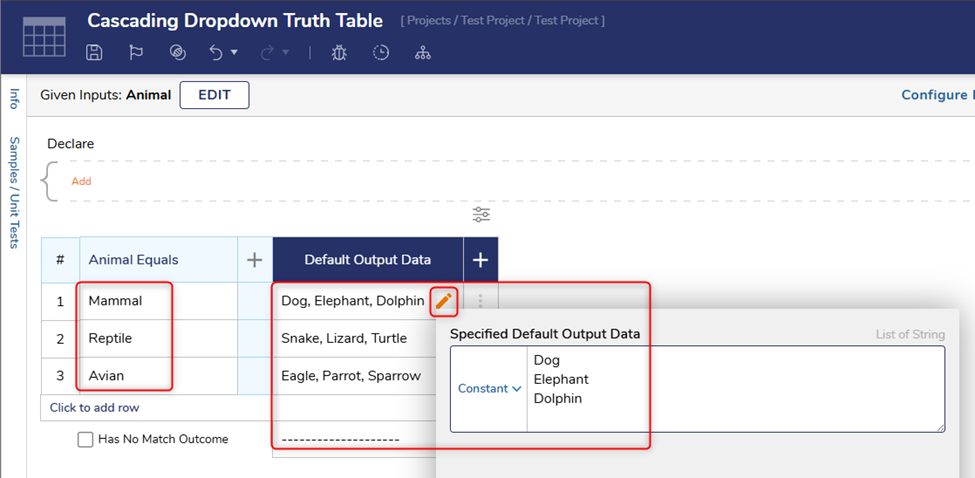
Enter your values in the truth table. Exit and SAVE.
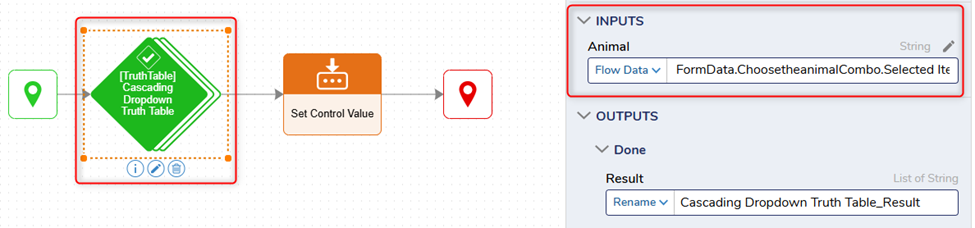
Back in the [Form Name]_Rule Flow, in the Truth Table properties INPUTS >> Animal, select Flow Data >> Form Data >> Choose the animal [Combo] >> Choose the animal [Selected Item] >> DONE.
Next, let’s drag out and drop the Set Control Value step from the Toolbox.
In the properties, under INPUTS >> Form Control, select Flow Data >> Form Data >> [Choose the species [Combo]]
For INPUTS >> Species, select Flow Data >> From [Form Name} Truth Table_Results.
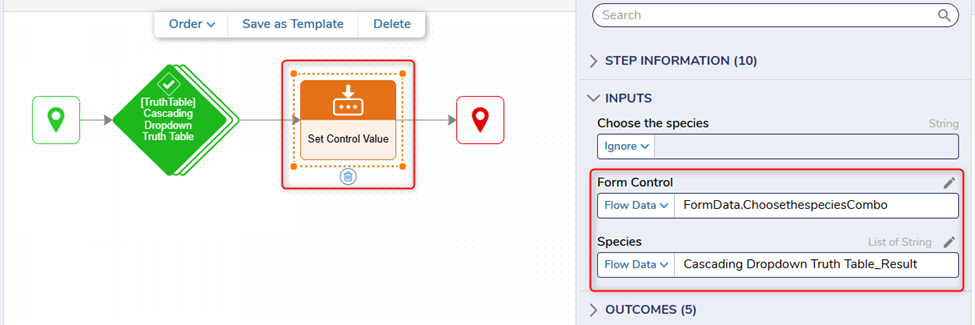
Connect to the end step. Exit and SAVE.
Click OK on the ‘Edit Active Form Flows’ window.
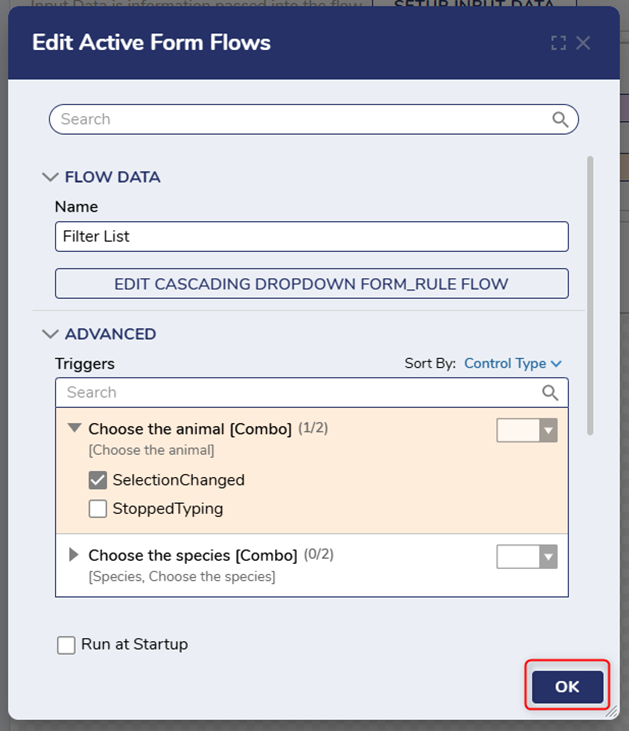
SAVE and exit the form.
Now, let’s test it! - See PART 2.
0 -
PART 2
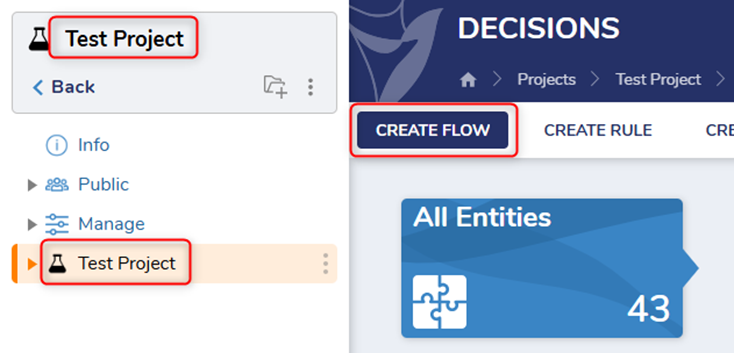
From the Project folder, click CREATE FLOW.
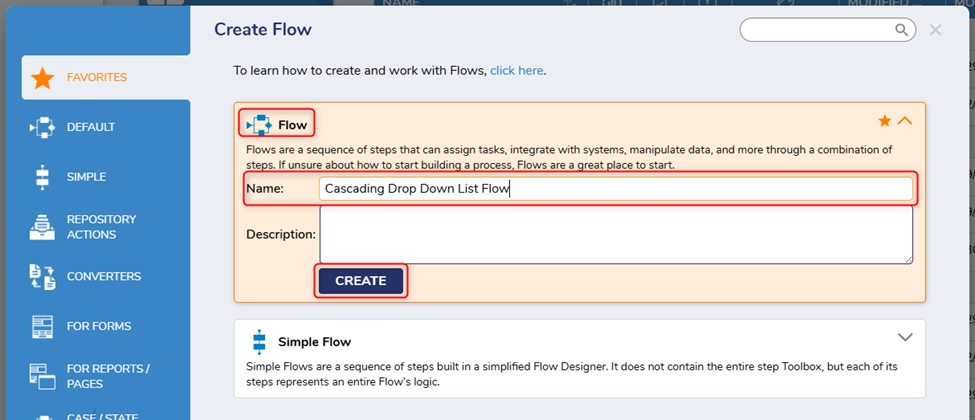
Select FLOW, give it a name, and click CREATE.
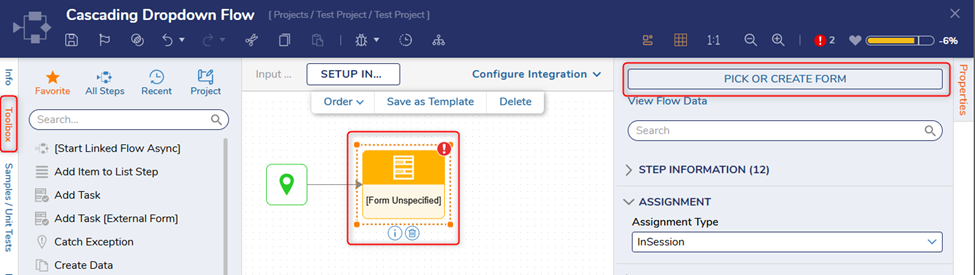
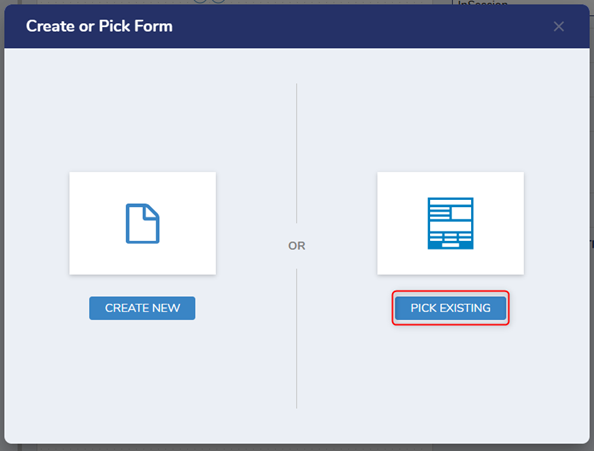
From the Toolbox, drag out and drop the Show Form step. In the properties, click PICK OR CREATE FORM.
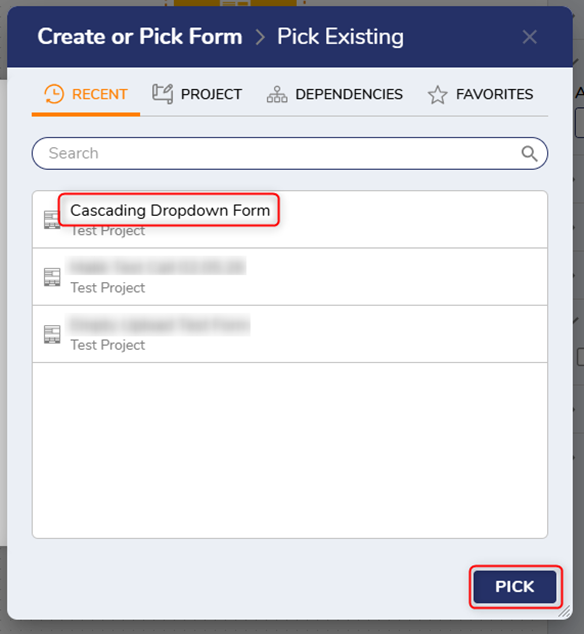
Click PICK EXISTING. Select the [Cascading Dropdown Form] & click PICK.
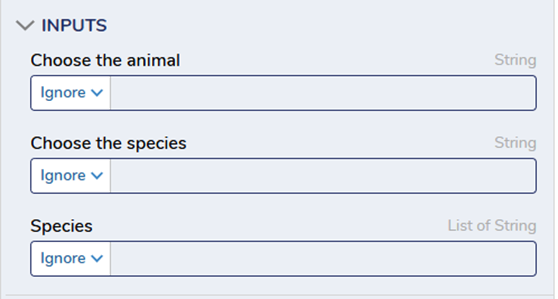
In the properties, under INPUTS, select Ignore for each.
Connect the Cancel and Submit paths to the end step. SAVE the flow and click Debug.
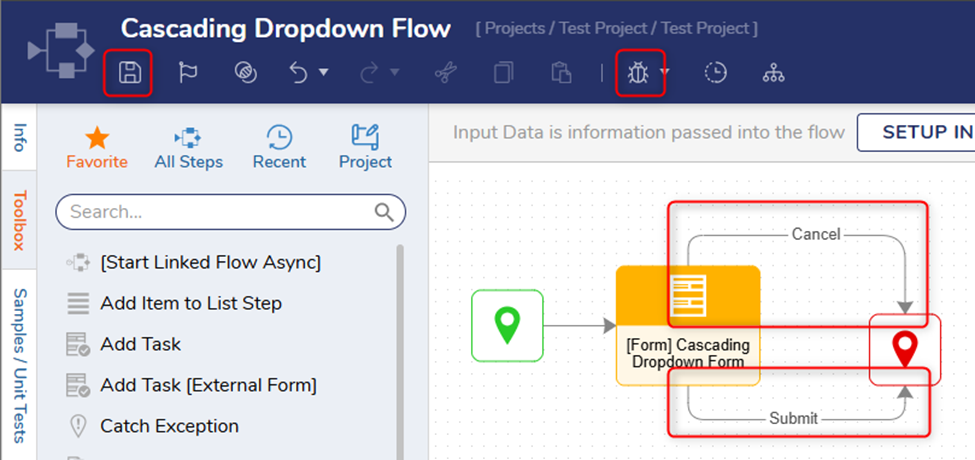
Click START DEBUGGING.
Choose an item from the first drop down menu & confirm the correct list populates in the second drop down menu.
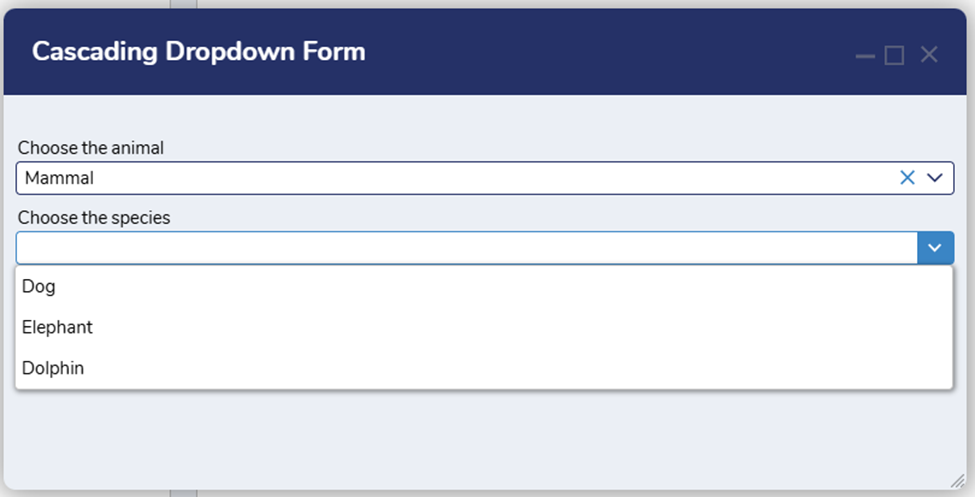
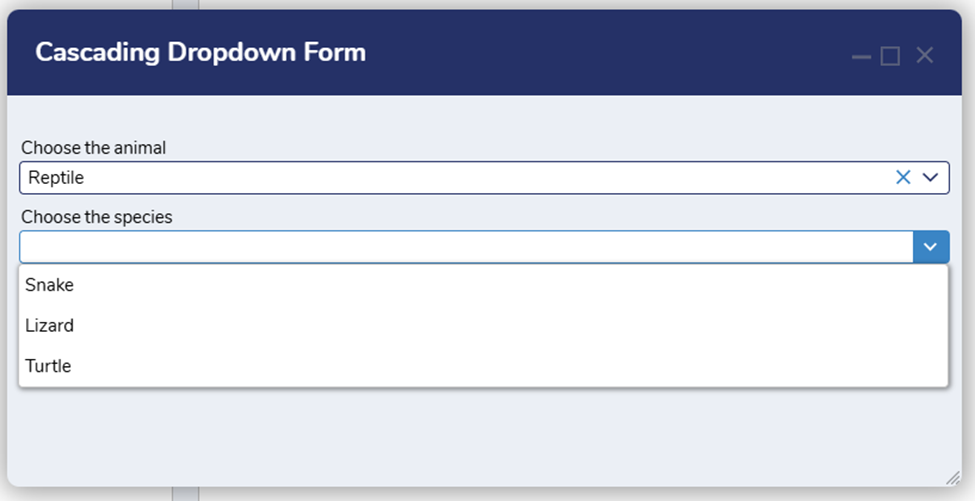
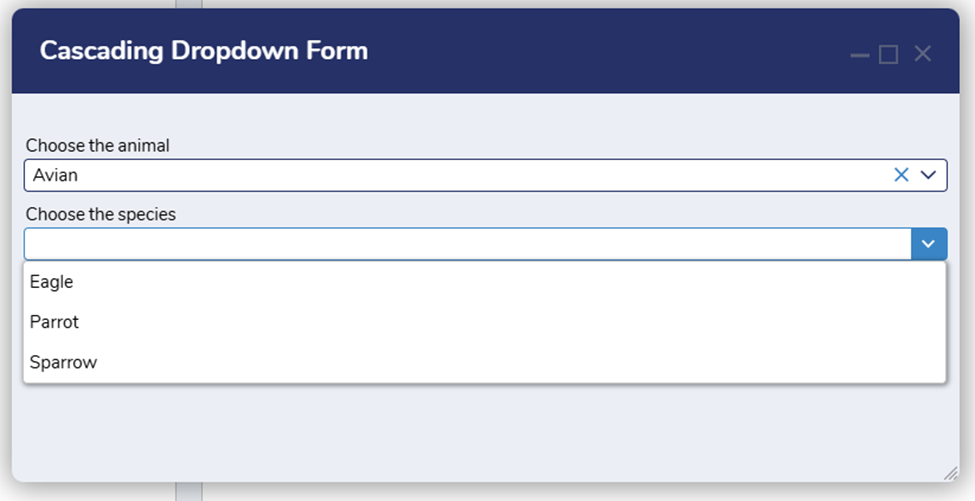
If needed, here are some additional resources for your review:
https://documentation.decisions.com/docs/active-form-flows-overview?highlight=active%20form%20flows
https://documentation.decisions.com/docs/about-truth-tables?highlight=truth%20table
All the best,
Tracey | Decisions Support0

Howdy, Stranger!