Easy Access to Important Reports

Comments
-
Hey there,
Im currently on Decisions version 6 and want to upgrade to version 8. My users regularly use the reports that appear on the right side when they open the inbox. However, when looking at the version 8 features, I noticed the side panel was completely gone! My users arent the most tech-savvy, so I want to make the reports easy to see when they first login. Is there anyway I can do that?0 -
Greetings!
While the right side-bar may not appear when you open the inbox anymore, theres still a really easy way to make those important reports accessible to your users! Just follow these steps in Decisions version 8.
Create a page. You can do this by clicking "Create Form" then select "Page".
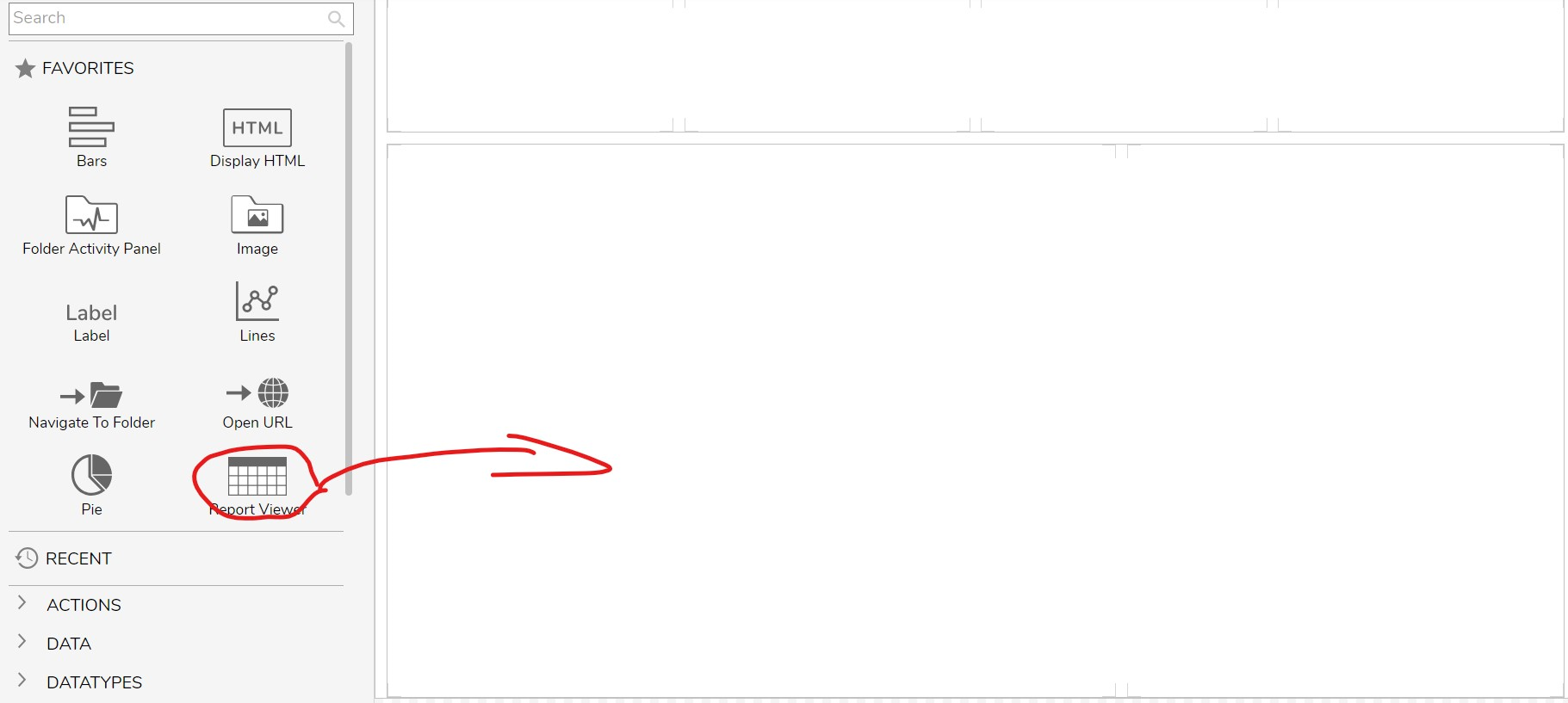
Once you create a page, add a "Report Viewer" to the page, as shown below:
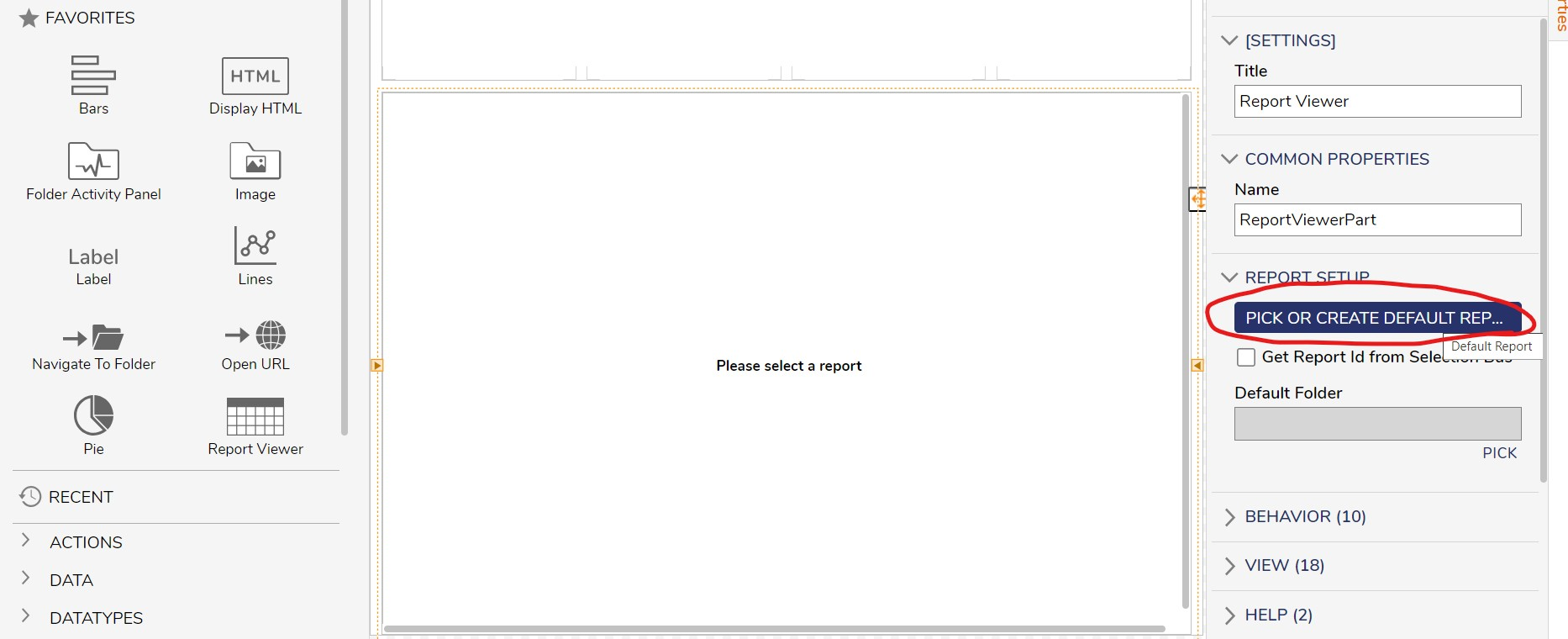
Add the report you want the user to see:
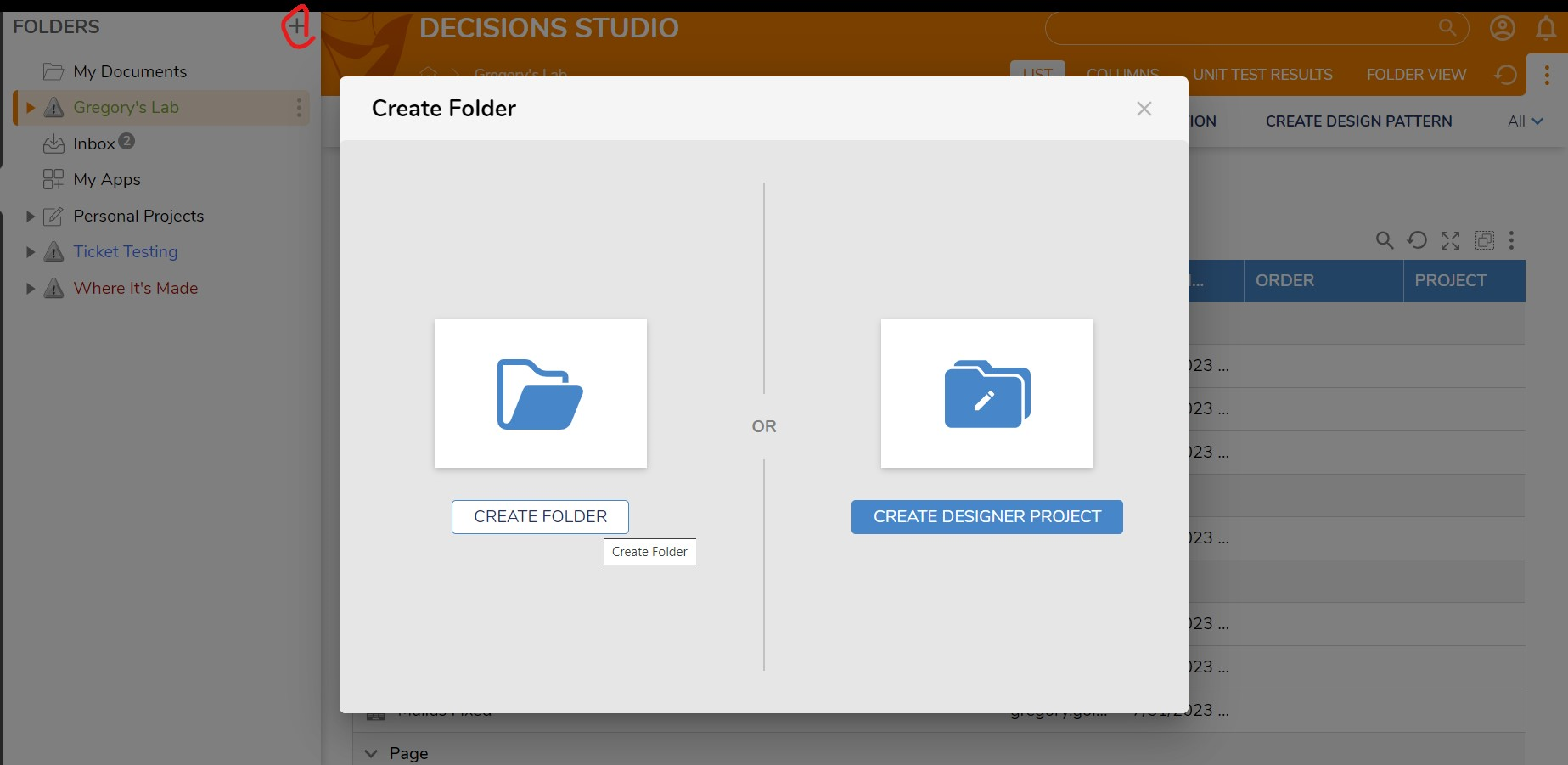
- Create a folder "At Root" to add the page to. This will the default folder you can set your user group to be brought to upon logging in:
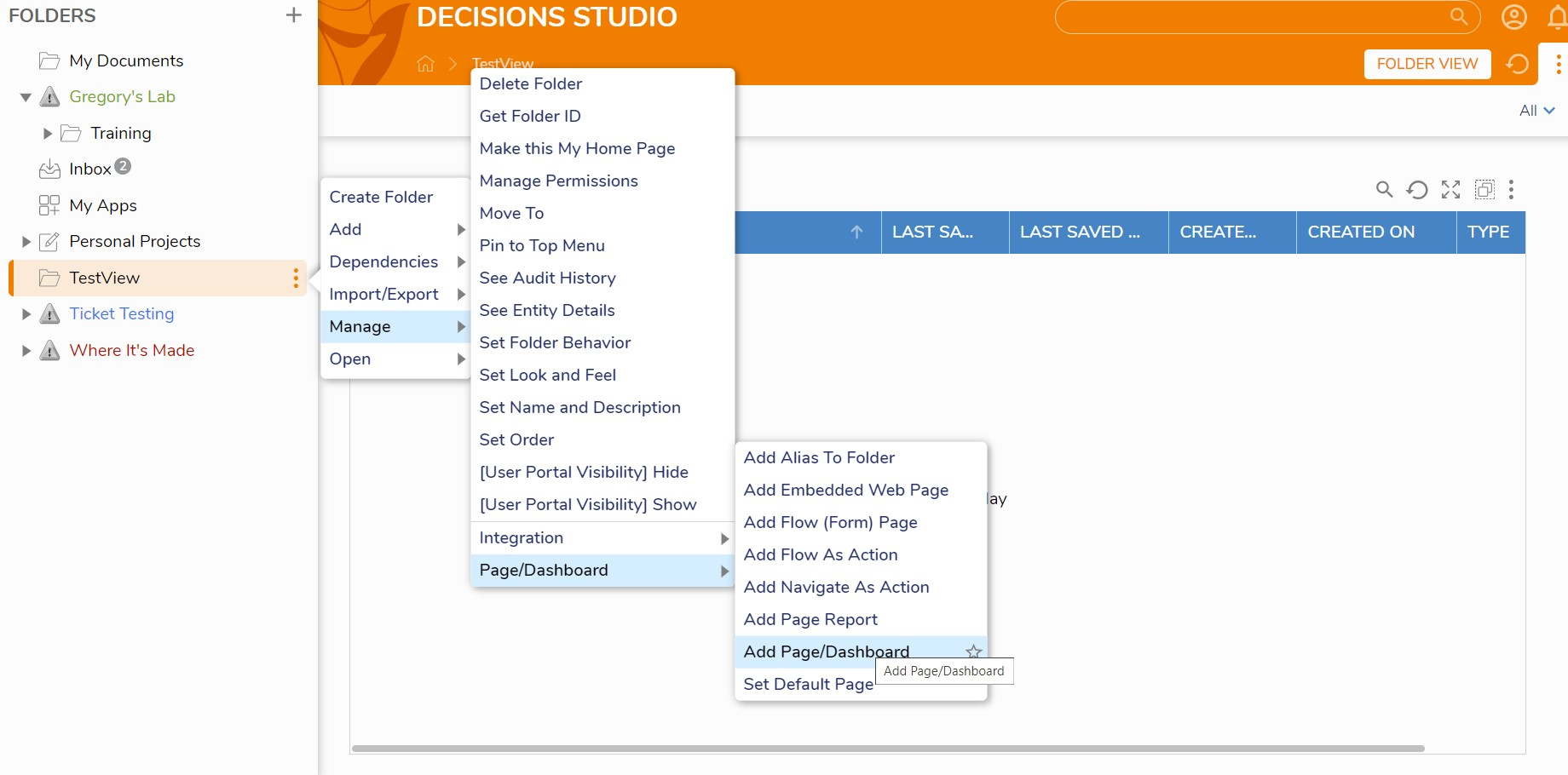
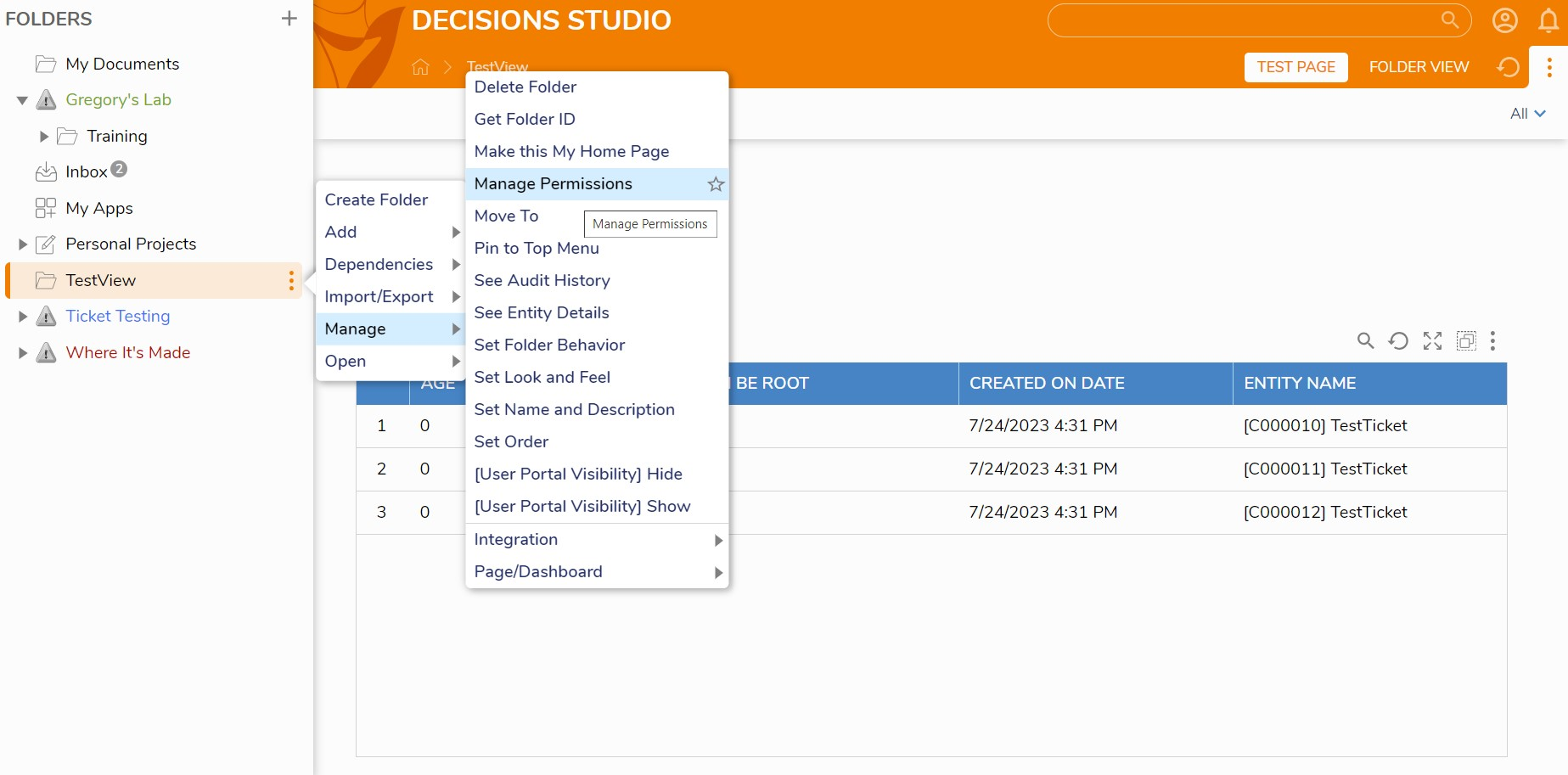
- Add the page to the folder. Youll find this by right-clicking the page then selecting "Manage" > "Page/Dashboard" > "Add Page/Dashboard":
- Set the permissions for the folders so your users can see/interact with it:
Now your users should be able to see this report, as well as anything else you add to the page, when they log in! Hope this helps.
36000